
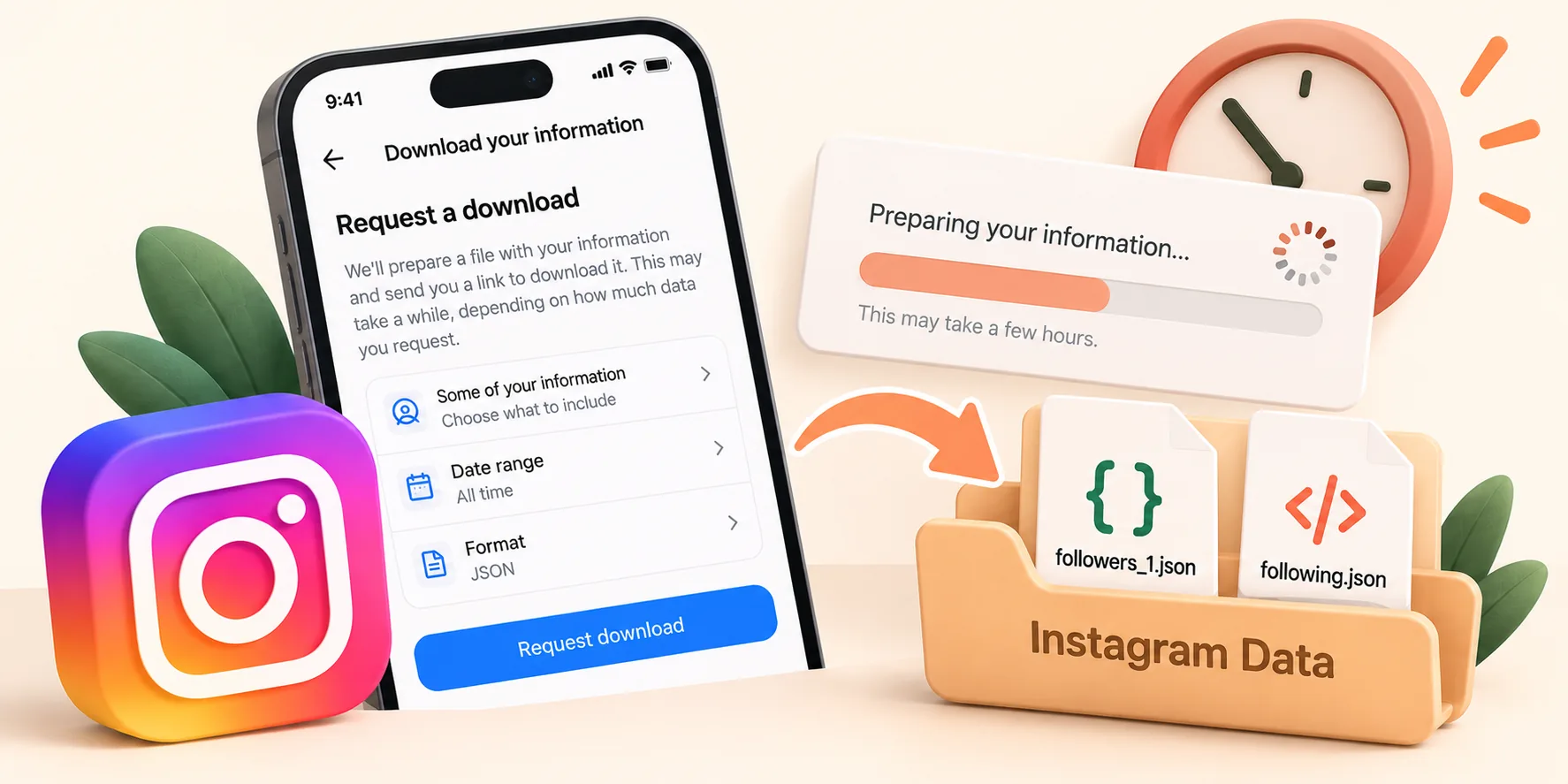
You requested your Instagram data and waited, but nothing arrived. Or perhaps the option to make the request simply isn't working. This is the stage where users most often get stuck before they can check who has unfollowed them; fortunately, this issue can almost always be resolved.
Here is how long the download should take, why it might get stuck, and how to fix it.
How long does an Instagram data download take?
This depends on the volume of data you are requesting:
- Just your "followers and following" list: generally takes anywhere from a few minutes to a few hours.
- All of your information: this can take significantly longer, especially for older accounts containing years' worth of posts and messages.
In rare cases, the process may take up to 30 days. This is an extreme scenario rather than the norm; however, it does mean that waiting a day or two does not necessarily indicate that a problem has occurred.
Fix 1: Only request what you need
The most effective way to speed up the process is to request less data. If you only want to view your followers:
- Select a portion of your information rather than the whole set.
- Check only "Followers" and "Following."
- Choose the JSON format.
- Set the date range to "All time" so that no followers are left out.
Our step-by-step guide to downloading your Instagram data shows every screen.
Fix 2: Check the right email inbox
Instagram sends the link to the email address associated with your account; this may not be the one you check most frequently. Before submitting a new request:
- Go to "Accounts Center" → "Personal details" and verify the email address.
- Search for "Instagram" or "Meta" in your inbox, as well as in your "Spam" and "Promotions" folders.
- If you use Gmail, also check the "Updates" tab.
Fix 3: Check the request status in the app
You do not need to wait for the email. Go back to Accounts Center → Your information and permissions → Download your information. Your request will appear there, along with its status. If the files are marked as ready, you can download them directly from that screen.
If the link in the email has already stopped working, see what to do when the Instagram download link has expired.
Fix 4: Can't find the download option at all?
Instagram has moved this setting to the Accounts Center; consequently, older guides point to the wrong location. The current path is as follows:
Profile → menu (☰) → Accounts Center → Your information and permissions → Download your information
If the option still does not appear, update the app or try accessing the site via a computer at instagram.com; this method often makes the option visible, unlike the mobile app.
Fix 5: The request seems stuck
If there has been no change after several days:
- Do not submit a large number of new requests. Additional requests can accumulate and slow down the entire process.
- Wait at least 48 hours after a more limited request (concerning your "followers" and the accounts you "follow") before trying again.
- If you need to start over, cancel the previous request via the "Download your information" screen, then submit a new, more limited request.
Got the file? Here's what to do next
Unzip it and open the followers_and_following folder. You need two files: followers_1.json and following.json. Here's what's inside them.
Upload followers_1.json and following.json to Unfollow Finder and see who doesn't follow you back in seconds. Free, no login, and your files stay in your browser.