
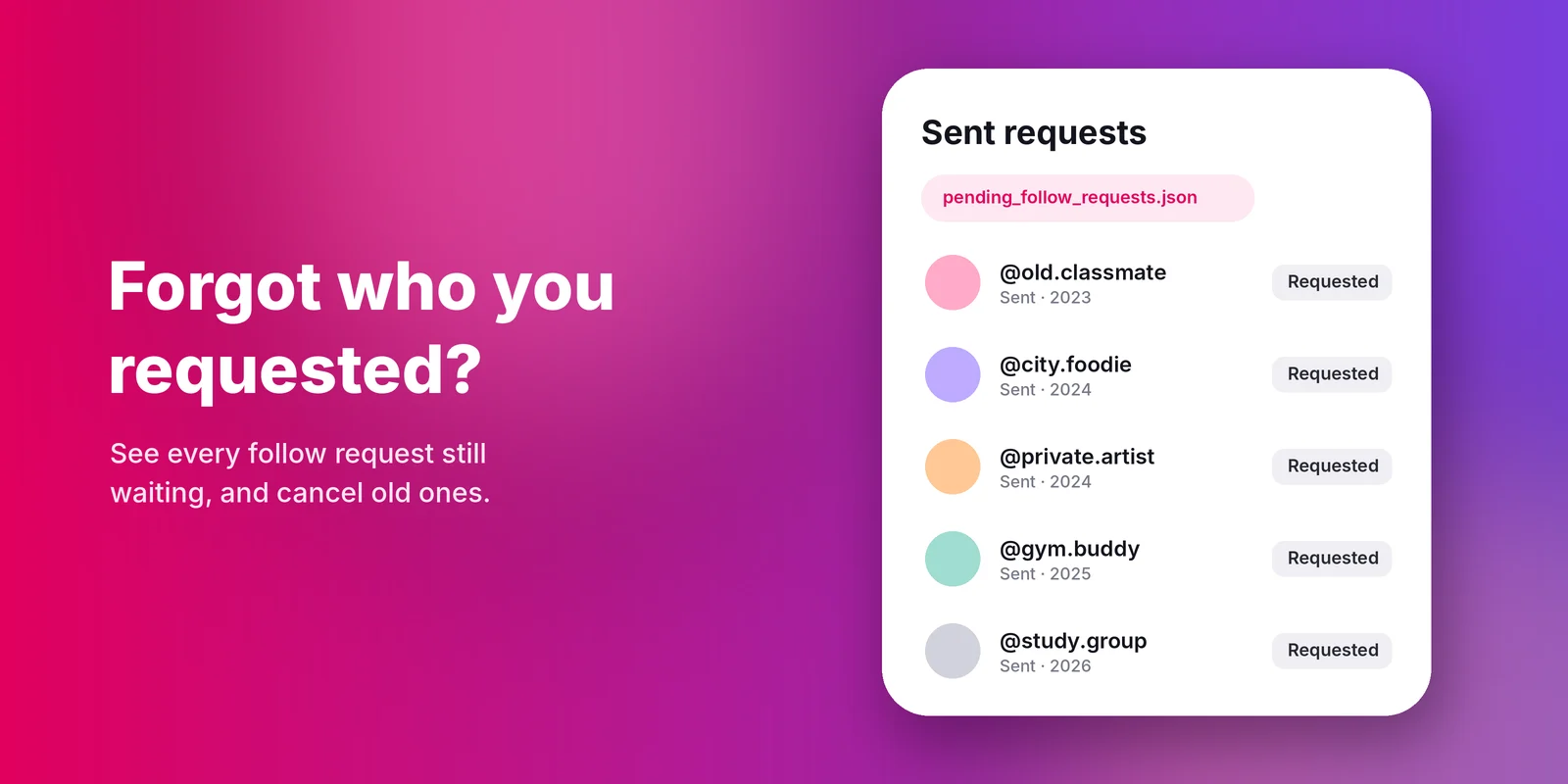
If you have downloaded your Instagram data, you have likely opened the followers_and_following folder and discovered far more than just the two files you were looking for. One of these is named pending_follow_requests.json. This is the only place where Instagram provides a complete list of the follow requests you have sent that have not yet been answered.
Here is what it contains, how to read it, and what you can do with it.
What is pending_follow_requests.json?
When you follow a private account, Instagram does not approve the follow request immediately. A request is sent, and the button then displays "Requested" until the user either accepts or declines it.
The pending_follow_requests.json file contains a list of all the requests you have sent that are still pending. Each entry typically includes the account's username, a link to their profile, and a timestamp indicating when the request was sent.
Here are a few items that are not included:
- Requests that have been accepted. These individuals now appear in the
following.jsonfile. - Requests that have been declined. Instagram removes these discreetly; therefore, they do not appear anywhere.
- Requests that others have sent to you. These can be found in a separate file, located in the same folder.
Why would you care?
Most people never think about the requests they've sent, but they pile up. A request you sent two years ago to an old classmate is still sitting there, and Instagram's app has no simple screen that lists them all.
The file is useful if you want to:
- Clean up requests you no longer want to be pending
- Check whether someone has seen your request but not answered
- Tidy your account before making it more professional
Where to find it
- Request your data from Instagram in JSON format. You can select only the "Followers and following" category to speed up the process. Our step-by-step guide to downloading your Instagram data will walk you through this.
- Once you receive the email, download and unzip the file.
- Open the
followers_and_followingfolder. In recent exports, this is located inside a folder namedconnections. - Look for the file named
pending_follow_requests.json.
If you cannot find it, it is likely because you have no pending requests, or because the time range selected for the export does not include them. Try selecting the "All time" option when exporting your data.
The file is plain text, so you can open it in any browser, Notepad or TextEdit. Each entry shows the username, a link to their profile, and the date you sent the request (as a Unix timestamp, which any free online converter turns into a normal date).

Your export is already open
Upload followers_1.json and following.json from the same folder and see who doesn't follow you back in seconds.
How to cancel old follow requests
Instagram does not offer a "cancel all" button, so you must cancel requests one by one:
- Open the file and click the link for a specific account.
- On the relevant profile, tap Requested.
- Confirm; the button will then change back to Follow.
If you have dozens of these, process a few each day. Canceling a large number of requests all at once may be interpreted by Instagram as automated activity.
Avoid apps or browser extensions that offer to automatically cancel all your requests. Many of them require your Instagram login credentials, and it is precisely this type of access that leads to account restrictions. See Is it safe to use Instagram unfollower apps?
How it fits with the other files
pending_follow_requests.json sits next to the two files most people actually need:
| File | What it lists |
|---|---|
| followers_1.json | Everyone who follows you |
| following.json | Everyone you follow |
| pending_follow_requests.json | Requests you've sent that are still waiting |
Unfollow Finder only needs the first two to show you who unfollowed you and who doesn't follow you back. Here's why we only ask for two files, and what's inside followers_1.json and following.json.
Frequently asked questions
following.json), they declined, or their account was deleted or deactivated.