Regaining access to a hacked Instagram account is a relief, but the work doesn't end there. Hackers often leave behind unwanted traces: strange accounts in your following list, new followers you don't recognize, and sometimes altered settings. This guide details the cleanup steps to take once you have recovered your account. As for choosing secure tools in general, see Is It Safe to Use Instagram Unfollower Apps?
Step 1: Secure the account first
Cleanup is pointless if the person who broke in can still get back in. Do these before anything else:
- Change your password to a long, unique one that you do not use anywhere else.
- Turn on two-factor authentication, ideally with an authenticator app instead of text messages.
- Check your login activity in your account security settings and log out of any session you do not recognise.
- Review the email address and phone number on the account. Attackers sometimes swap them to keep control.
- Remove unknown connected apps and third-party services in your settings.
- Secure the email account linked to Instagram, since it is often the way in.
If you cannot get in at all, use the account recovery options on the login screen and follow Instagram's help pages for hacked accounts.
Step 2: Check what the hacker did
Look for signs of what happened while you were locked out:
- Posts, stories or reels you did not make
- Messages sent from your account, especially links or requests for money
- A changed bio, link or profile photo
- New accounts in your Following list
- A sudden jump in followers, or a large drop
If friends received odd messages from you, tell them directly that your account was compromised and that they should not click anything or send money.
Step 3: Find accounts you were made to follow
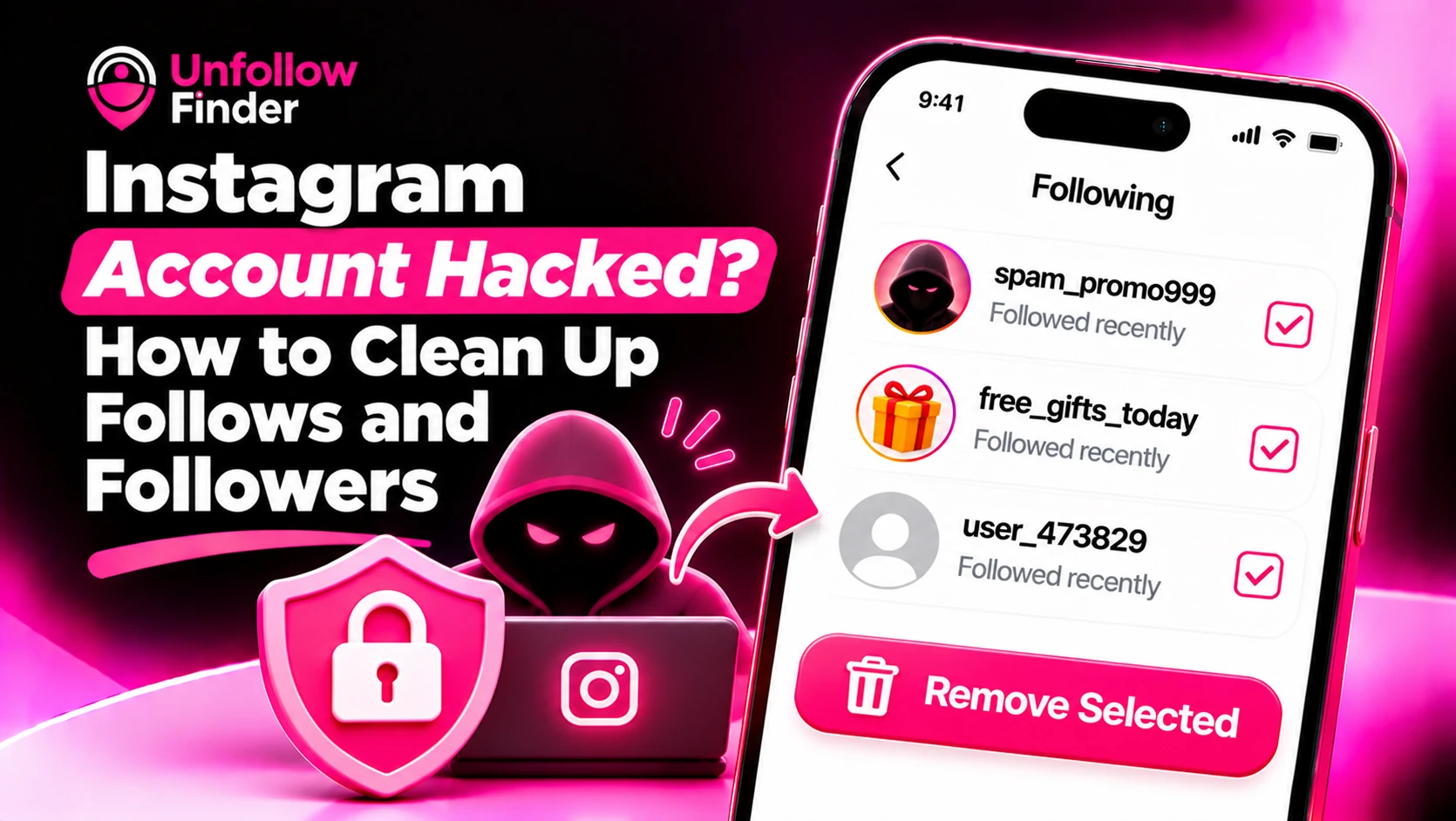
A common tactic is to follow large numbers of accounts that are part of a spam or promotion network. These can be hard to spot by scrolling, especially if your Following list is long.
A reliable method is to compare two exports:
- Download your data now. See How to Download Your Instagram Data.
- Open
following.jsonand look at the dates. The file lists accounts with the time you followed them, so a cluster of follows within the hack window stands out. - Compare that group with an older export if you have one, or with your own memory of who you follow.
- Mark the accounts that you do not recognise.
For help reading the file, see followers_1.json and following.json Explained.
If you do not have an older export, treat the accounts followed during the dates you lost access as suspect, then keep the ones you know and remove the rest.
Step 4: Unfollow the suspect accounts safely
Remove them in small batches rather than all at once. A large burst of unfollowing, right after a hack, can trigger a temporary restriction on your account. See Instagram Unfollow Limit Per Day for pacing and the action-block advice in that guide if a restriction appears.
While you are in the list, report accounts that clearly look like spam or scams from their profile menu.
Step 5: Review your followers
Hackers sometimes boost an account with fake followers or use the account to approve requests. Open your followers list and look for:
- Accounts with no photo or posts
- Strings of random numbers in the username
- Many new followers from the same period
- Accounts that look like they sell something unrelated to you
If you find some, you can remove followers without blocking them. They will not be notified. Blocking goes further: it also stops that account from finding your profile or sending a new request.
The followers_1.json file lists who follows you. Unfollow Finder compares it with following.json in your browser, so you can see exactly who follows you without you following them, and the reverse. You do not log in or share a password. That is also the safest option after a hack, because you should not hand your login to any new tool right now.
Step 6: Restore your public face
Once the account is clean:
- Delete any posts or stories you did not make.
- Restore your profile photo, bio and link if they were changed.
- Post a short note that you recovered the account, if your audience saw odd content.
- Reset linked accounts if you used them to log in, such as Facebook.
How to avoid it next time
- Use a unique password and a password manager.
- Keep two-factor authentication on.
- Never share your password with a follower-tracking or growth tool. Use methods that only need an export file.
- Be wary of login links in messages, even from friends.
- Check your login activity every few months.
Upload your two export files to Unfollow Finder and review your lists in your browser, with no login.